Completeness vs. Correctness: The Silent Performance Killers
The Google Shopping algorithm functions less like a simple product directory and more like a high-precision verification engine. A "green" status in Google Merchant Center doesn't guarantee performance.
Completeness refers to the presence of optional attributes like color, size, or material. These act as filters—without them, your product becomes invisible when users drill down in the Shopping tab.
Correctness, however, is a matter of data integrity. If your feed specifies a "Cotton" material but your landing page description mentions "Polyester," Google identifies the discrepancy using its automated quality checks. This lack of alignment triggers a lower Quality Score, which directly increases your Cost Per Click (CPC).
Mastering Variant Logic with item_group_id
Scaling requires handling complexity without triggering duplication penalties. The item_group_id is the essential string that binds variants (different sizes, colors, or patterns) of the same parent product.
Why it matters: It prevents Google from seeing variants as "duplicate" listings and enables features like color swatches or "available in more sizes" directly in search results.
The logic: Every variant must share the same item_group_id but maintain a unique id (SKU).
Naming Convention Example: If the parent SKU is TSHIRT-V-NECK, variants should use IDs like TSHIRT-V-NECK-BL-M while sharing TSHIRT-V-NECK as the item_group_id.
Common Error: Saving variant-specific data (like size) in product-level attributes, which causes "mismatched values" across the group.
Identifier Logic: GTIN, MPN, and Brand
Unique Product Identifiers (UPIs) are the DNA of the Shopping graph. They help Google understand exactly what you are selling by connecting it to a global database.
Identifier
Requirement
Usage Rule
Discover why other ecommerce businesses trust ButterflAI to accelerate their sales
Why Google Shopping Feed Optimization Matters at Scale
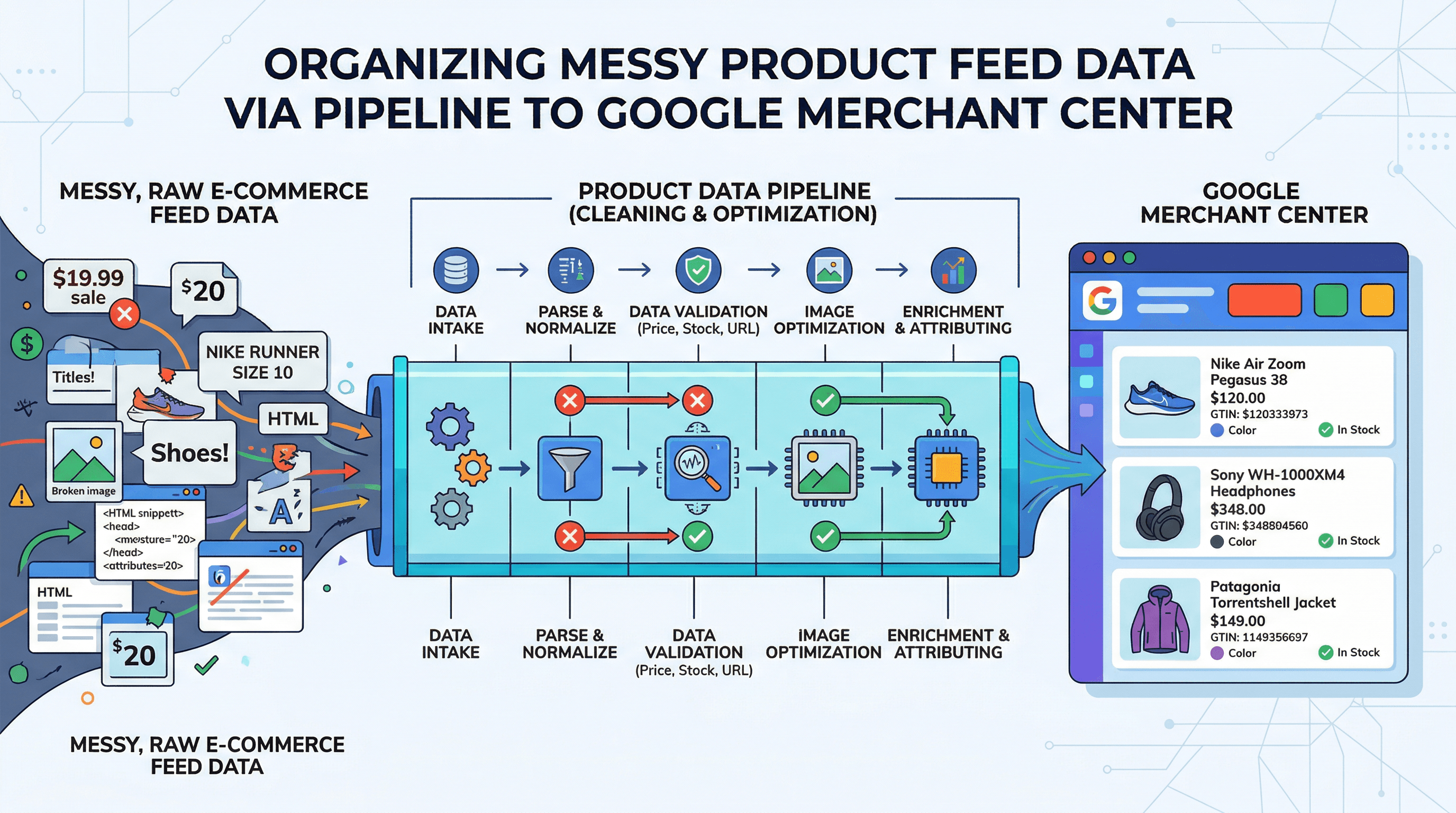
Scaling an eCommerce catalog is a double-edged sword. While it expands market reach, it exponentially increases data management complexity. For high-growth brands, Google Shopping feed optimization transitions from a one-time setup task to a critical daily operation. Without a systematic approach, a single attribute error in your PIM (Product Information Management system, the central hub for storing and distributing product data) can trigger a cascade of disapprovals across thousands of SKUs in Google Merchant Center (GMC).
When managing 50 products, manual fixes are manageable. At 5,000+ products, they become an operational bottleneck. The reality of catalog growth is that errors are rarely isolated; they are systemic. If price synchronization lags or GTINs (Global Trade Item Numbers, which are unique identifiers used to identify products in the global marketplace) are missing, your highest-margin products simply disappear from search results.
To maintain visibility and maximize ROAS, teams must move beyond reactive fixes. This requires a systematic QA scorecard—a framework that shifts the focus from fixing errors after they happen to preventing them during the ingestion phase. Watch this video for a breakdown of feed fundamentals: Merchant Center Feed Basics.
Best Practice
GTIN
Highly Recommended
Mandatory for most brand-name products (UPC, EAN).
Use official GS1 data; never borrow a GTIN from a similar item.
MPN
Recommended
Use if GTIN is unavailable; specific to the manufacturer.
Ensure it is specific to the variant SKU, not the parent.
Brand
Required
Mandatory for all products with a clearly defined brand.
Use the name users recognize, not the legal corporate entity.
identifier_exists
Optional
Set to false only for custom, handmade, or vintage goods.
If set to false for branded goods, visibility often drops significantly.
The Mismatch Trio: Price, Availability, and Shipping
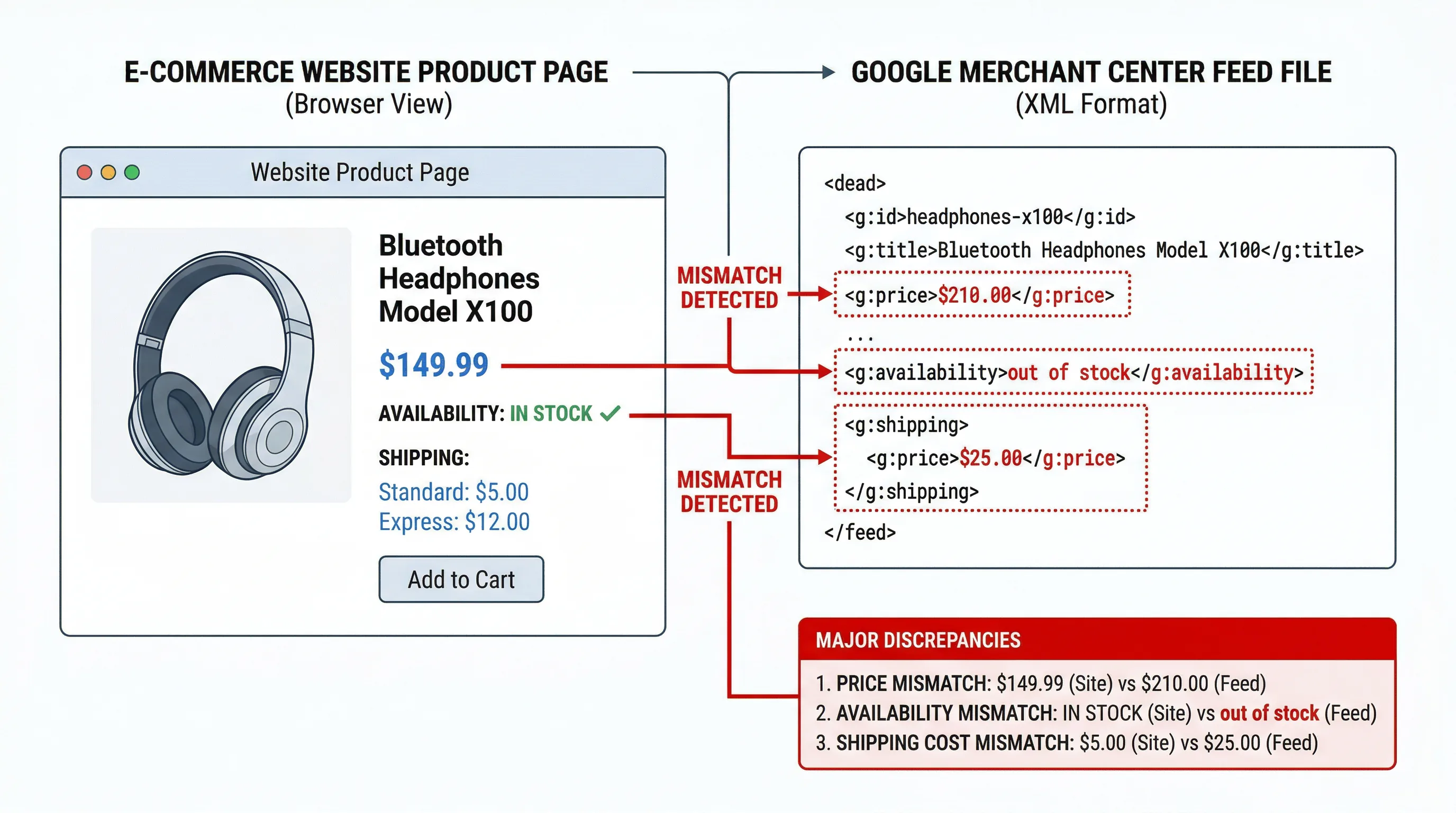
These three attributes cause over 80 percent of account-level warnings. Google crawls your site frequently to ensure the feed matches the checkout reality.
Price: Must include currency and match the most prominent price on the page, including any sale prices.
Availability: If the feed says in_stock but the buy button is disabled, the item is pulled immediately.
Shipping & Tax: Often overlooked, these must represent the maximum cost a user might pay or be configured accurately via Merchant Center settings.
The Google Shopping Feed QA Scorecard
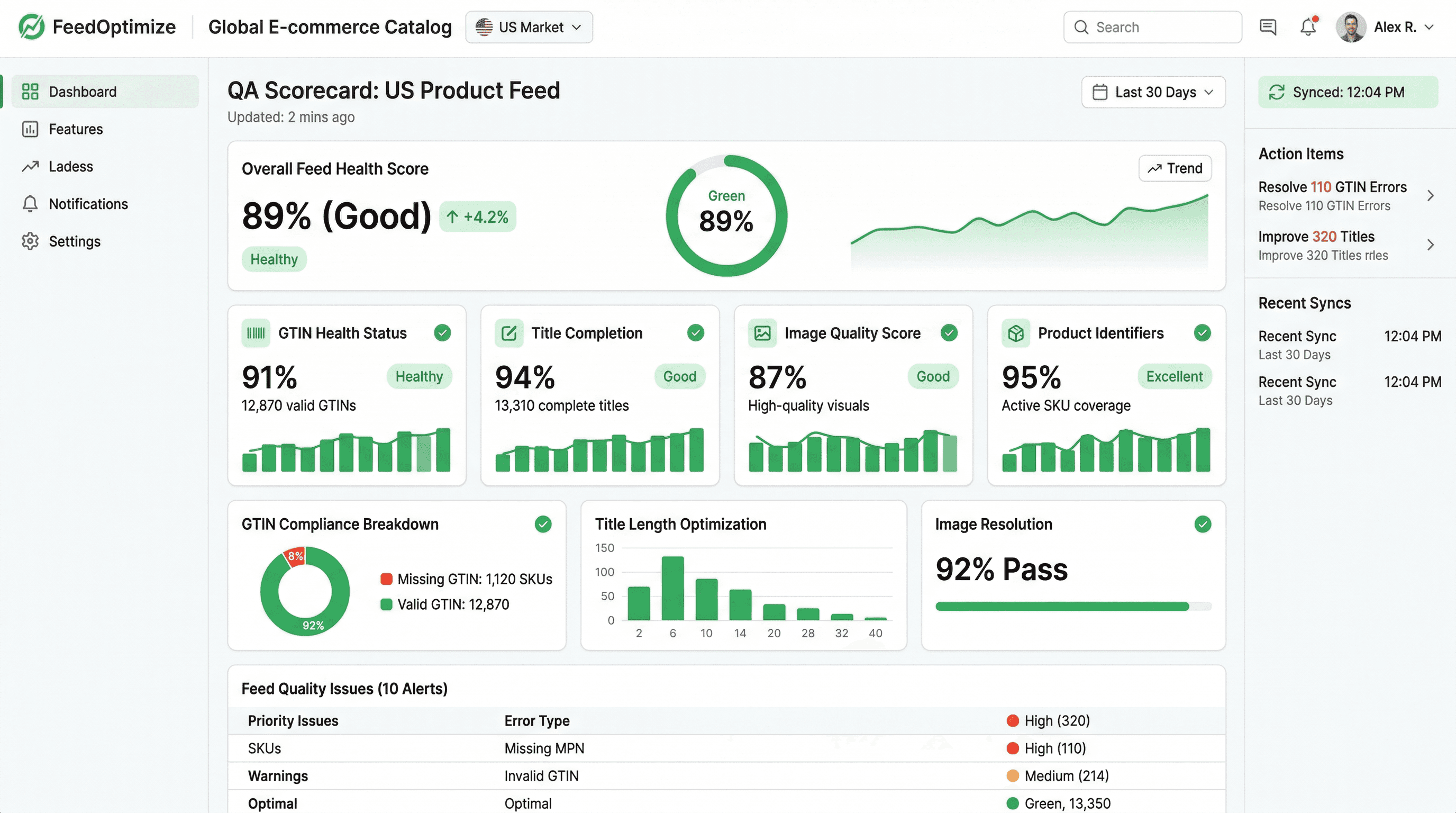
Scaling an eCommerce catalog often leads to a "data debt" that manifests as Merchant Center warnings and low ad performance. To maintain a competitive edge, teams must move away from reactive troubleshooting and adopt a Feed QA Scorecard. This framework allows eCommerce Managers and SEO Leads to audit their feed health across six critical dimensions, ensuring that every SKU has the best possible chance of conversion.
Core Dimensions of the Scorecard
A high-performing feed is built on the following six pillars. Each dimension should be scored weekly to identify areas of decay:
Identifiers (GTIN/MPN/Brand): These are non-negotiable for Google's matching algorithms. Missing GTINs often lead to limited visibility or outright disapprovals.
Taxonomy (Categorization): Ensure your products are mapped to the correct Google Product Category. While Google can auto-categorize, manual mapping prevents "Uncategorized" errors.
Title Optimization: Titles should be structured by importance.
Example template:[Brand] + [Product Type] + [Color] + [Size]
Before/After: "Nike Running Shoe" vs. "Nike Air Zoom Pegasus 39 Men's Running Shoe Blue Size 10"
Image Quality: Google recommends images up to 1500x1500px for maximum clarity. Avoid promotional text or watermarks that trigger automatic removals.
Pricing and Availability Sync: Mismatches between the feed and the landing page are the number one cause of account-level suspensions.
Policy Risk: Proactively scan for prohibited terms or medical claims that might trigger a manual review.
Diagnostics-Driven Triage
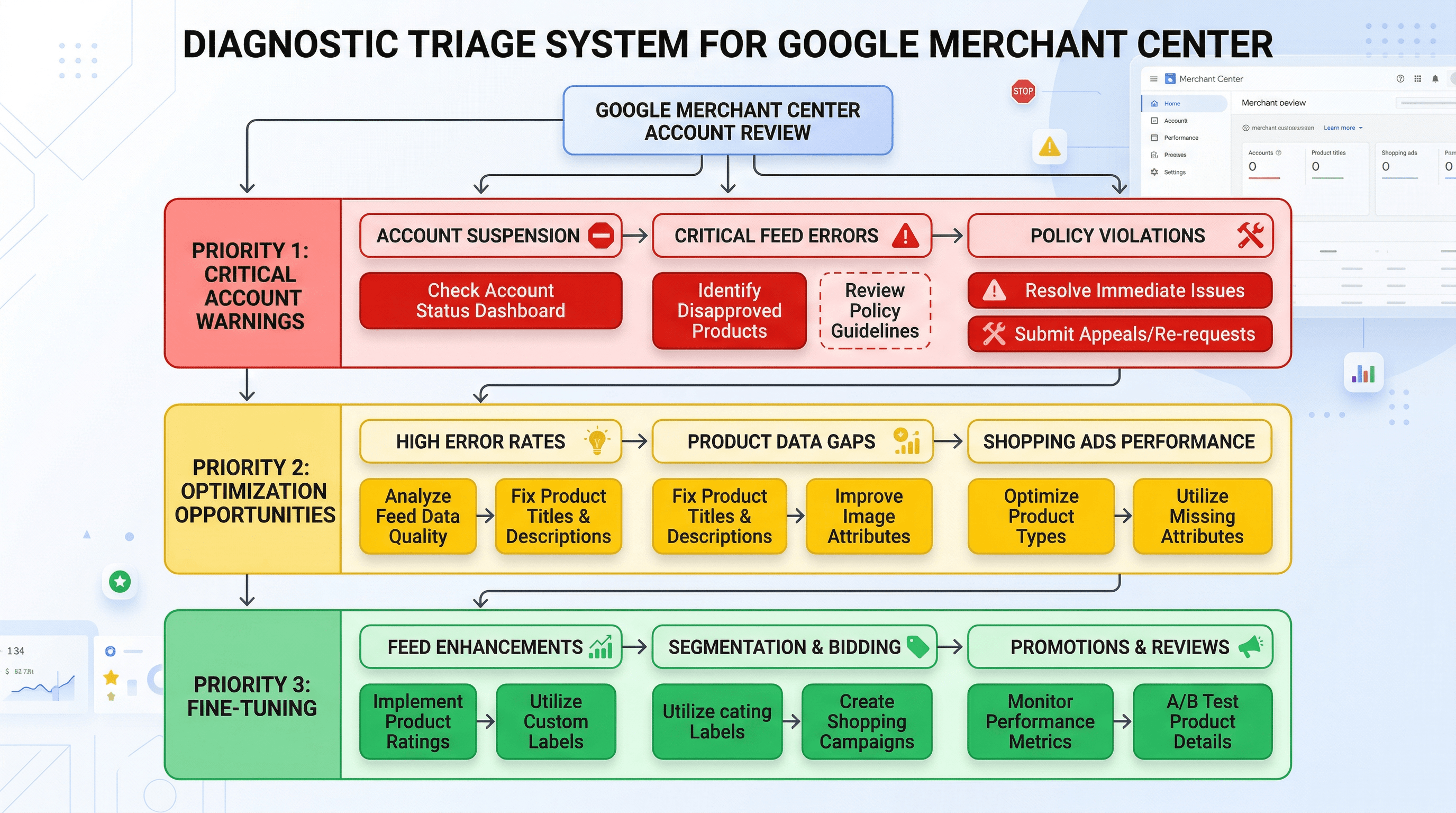
Not all feed issues are created equal. Use a triage system to prioritize engineering and marketing resources:
Priority 1 (Red): Disapprovals & Account Warnings. These affect immediate revenue. Focus on price/availability mismatches and missing mandatory identifiers.
Priority 2 (Yellow): Optimization Opportunities. These include low-quality images, non-optimized titles, or missing optional attributes like product_highlight or lifestyle_image_link.
Priority 3 (Green): Fine-Tuning. Adding custom labels for campaign segmentation or refining shipping settings.
Implementing Rule-Based Fixes and Fallback Logic
To scale, you cannot manually edit 10,000 SKUs. Use rule-based logic to automate data cleanup:
Fallback Logic: If a description is missing, use a concatenation of title + material + brand.
Conditional Fixes: If brand equals "Generic" and color is present, prepend the color to the product title to increase CTR.
Default Values: Set a default condition to "new" if the attribute is empty to satisfy mandatory requirements.
The "Stop-the-Line" Protocol for Catalog Releases
Before pushing a new collection live, implement a "Stop-the-Line" rule. If a new batch of products fails more than two core scorecard dimensions, the feed update should be paused. This prevents "pollution" of the Merchant Center data and protects your account's health score.
Dimension
Threshold for Failure
Action
Identifiers
>5% Missing GTINs
Stop Release
Pricing
Any discrepancy > 0.01
Stop Release
Images
>10% below 600px
Warning
Common Error: Relying solely on Shopify's default feed export without applying custom transformation rules, which often leads to truncated titles and generic categorization.
Fixing Top Google Merchant Center Errors (Actionable Checklist)
Maintaining a healthy product feed is a continuous operational task, not a one-time setup. High-growth eCommerce catalogs often trigger warnings that can throttle visibility or lead to complete account suspension. This checklist provides a systematic approach to resolving the most common Merchant Center errors to ensure your Google Shopping feed optimization remains effective and scalable.
1. Resolve Missing or Invalid Unique Product Identifiers (UPIs)
Google relies on identifiers like GTINs to understand exactly what you are selling and to compare your offers with other retailers.
The Problem: You see errors such as "Limited performance due to missing identifiers" or "Invalid GTIN."
The Fix: Audit your catalog for GTINs. If you sell custom or handmade goods without a GTIN, you must set the identifier_exists attribute to false and ensure the brand and mpn are provided where possible.
Concrete Example: For a Nike shoe, ensure the specific 14-digit GTIN for that exact size/color variant is mapped correctly in your PIM.
Typical Error: Mapping a single parent GTIN to all product variants, which causes a "Duplicate GTIN" disapproval.
2. Synchronize Price and Availability Data
Mismatches between your feed and your website are the fastest way to get items disapproved.
The Problem: Google’s crawler finds a different price or stock status on your landing page compared to your submitted feed.
The Fix: Implement Schema.org—a standardized vocabulary of structured data added to your HTML that helps Google understand your product data in real-time. Enable "Automatic Item Updates" in Merchant Center settings to allow Google to refresh your price and availability based on your site’s structured data.
Actionable Step: Verify that your currency and price (including decimals) match exactly between the price attribute and the visible text on your product page.
3. Optimize Image Links and Quality
Google is strict about how products are visually represented to users.
The Problem: Image crawl errors or "Promotional text on image" warnings.
The Fix: Ensure your image_link attributes point to high-resolution, publicly accessible URLs. If you use a CDN, verify that Google’s bot (Googlebot-Image) is not blocked by your robots.txt file.
Framework for Images:
Use a solid white background.
Remove watermarks, logos, or "Free Shipping" overlays.
Ensure the image size is at least 100 x 100 pixels (250 x 250 for apparel).
4. Validate Shipping and Tax Settings
Incorrect shipping costs can lead to a "Misrepresentation" warning, which is often difficult to appeal.
The Problem: The shipping cost shown in the Shopping ad is lower than what the customer sees at checkout.
The Fix: Configure your shipping settings at the account level in Merchant Center to match your store’s flat rates or carrier-calculated rules. For complex setups, use the shipping attribute in the feed to override account-level settings for specific oversized products to remain compliant with Google's strict misrepresentation policies.
Weekly Operations Workflow to Maintain Clean Data
Maintaining a high-performing Google Shopping feed requires a disciplined operational cadence to prevent data decay. As your catalog scales, manual checks become impossible, making a structured workflow essential.
Daily: The Critical Health Sprint
Dedicate 10 minutes every morning to the Diagnostics tab in Google Merchant Center. Focus exclusively on "Critical" (red) issues such as price and availability mismatches. These errors occur when the feed value differs from the microdata on your landing page—often due to server-side caching or rapid price fluctuations. Resolving these immediately protects your account standing and prevents Google from serving non-compliant ads.
Weekly: Performance and Diagnostic Trends
Once a week, conduct a 90-minute deep dive into your feed health. Review the trend lines in your dashboard: are disapprovals creeping up? This often signals a regression caused by a recent site update or a bulk product upload. Audit your GTIN health; missing or invalid identifiers are the leading cause of "Limited" status in competitive auctions.
Monday: Review Merchant Center Diagnostics to identify critical disapprovals or warnings.
Wednesday: Audit top-selling SKUs for title clarity and image compliance.
Friday: Validate that feed values for price and availability match your live website data to prevent mismatches.
A common error is ignoring warnings that do not cause immediate disapproval. These warnings often suppress your reach and increase your CPC.
Monthly: Strategic Enrichment and Automation
Shift from fixing errors to enhancing visibility. Use this time to map new PIM attributes—like product_highlight or lifestyle_image_link—that improve Click-Through Rate (CTR). For a deeper dive into attribute requirements, consult the Google Product Data Specification.
Automated QA for Scalable Growth
Data quality directly impacts your bottom line. High-quality feeds achieve better relevance scores, leading to higher impressions and click-through rates. To scale efficiently, prioritize your optimization efforts based on revenue impact. Start by auditing the top 20 percent of your products that generate the majority of your sales.
Implementing a scalable approach to content and attributes stops poor-quality data from ever entering the auction, acting as a critical change management layer.
Large Language Models can analyze product images or short descriptions to generate missing technical attributes or SEO-optimized titles at scale. This automates quality gates, ensuring that data is validated and enriched before it ever reaches the feed. The result is a robust infrastructure that prevents data debt while maintaining a competitive edge in the search auction.
Instead of manually troubleshooting individual SKUs, ButterflAI automates these quality gates and enriches your catalog at scale. ButterflAI detects missing identifiers, enriches titles, and validates critical attributes seamlessly across thousands of products, ensuring your feed is fully optimized and compliant before it ever reaches Google Merchant Center.