

How to Bulk Edit Product Images in Shopify
Learn how to bulk edit product images in Shopify with AI. Automate resizing, optimization, and catalog consistency efficiently.
Learn how to resize images in Shopify in bulk using AI. Optimize dimensions, improve load speed, and boost your store's SEO automatically.
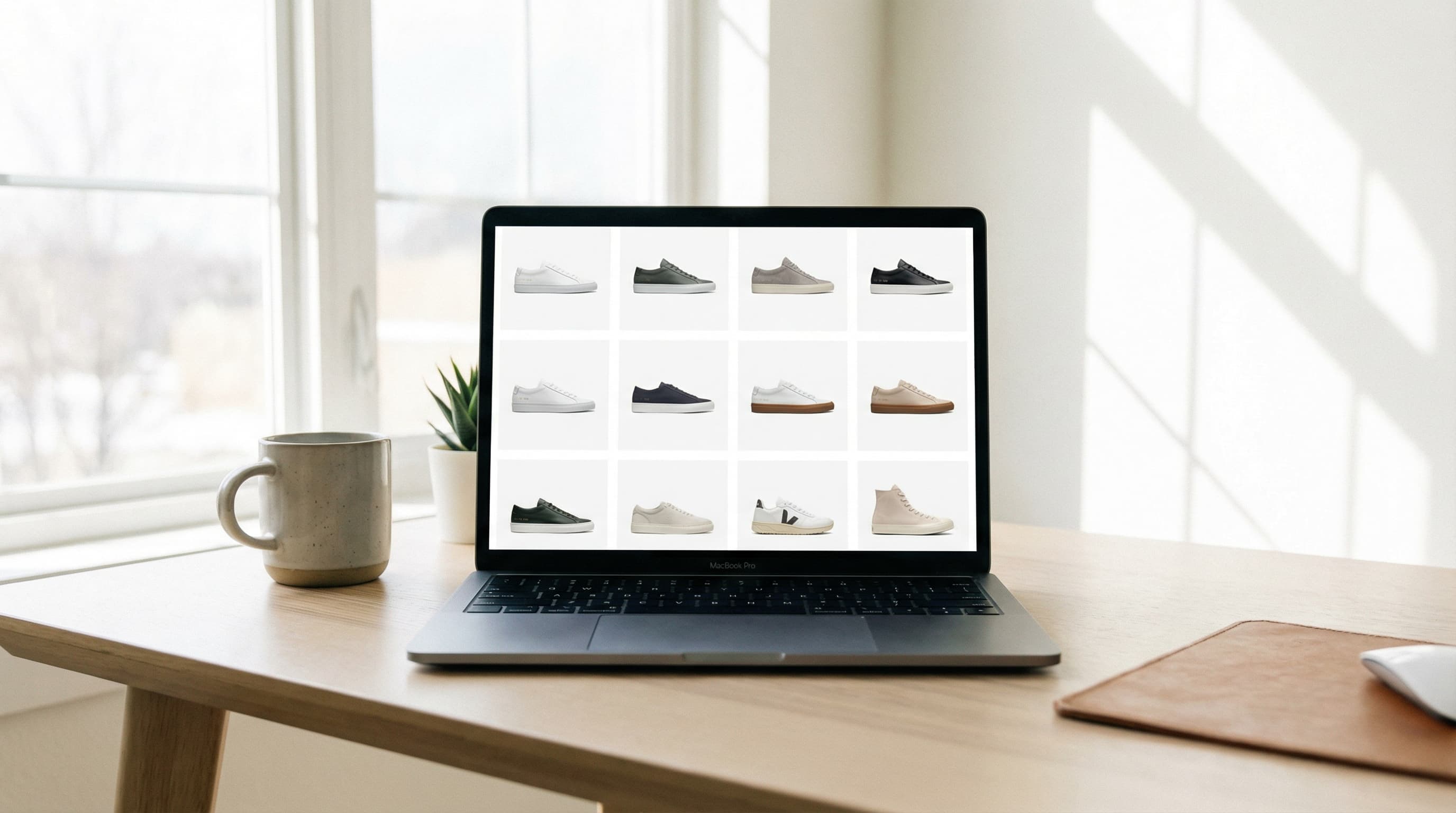
Optimizing the size of your photos is crucial for your store's speed and SEO performance. Discover how to resize images in Shopify massively and automatically using AI agents that ensure visual consistency and superior technical performance across your entire catalog.
Managing a Shopify store with hundreds or thousands of products involves facing a constant visual challenge: the disparity in sizes and formats of product photography. When merchants upload images directly from smartphones or receive them from different suppliers, the result is often a messy catalog, excessively slow load times, and a poor user experience (UX).
The main problem with trying to resize images in Shopify manually is the lack of scalability. Editing each file in Photoshop or free online tools consumes hours of work that an eCommerce Manager should not waste. Furthermore, Shopify does not automatically adjust aspect ratios intelligently; if you upload a vertical image and your template uses squares, the crop might hide vital parts of the product.
This inconsistency affects more than just aesthetics. From a technical perspective, heavy images without optimized dimensions penalize your store's SEO. Google values load speed (Core Web Vitals) and visual stability. If images cause content layout shifts (CLS) while loading, your ranking in search results will drop, directly affecting your conversions and sales.
ButterflAI removes the technical friction of visual optimization by allowing Shopify merchants to fully automate the resizing and scaling process. Unlike basic editing tools, our platform uses AI agents specifically designed for eCommerce, capable of understanding image content to ensure the product is always the protagonist.
By connecting ButterflAI to your store, you can define global rules for your entire catalog. Do you need all your photos to be 1200x1200px with an ultra-light WebP format? Our AI processes these requests in bulk, analyzing each photograph to apply the most aesthetic crop without losing relevant information.
What do you achieve with ButterflAI?
This solution is not a simple photo editor; it is a productivity engine that allows marketing teams to focus on strategy while the AI ensures that every pixel is in its correct place.
If you want to know how to resize images in Shopify using the power of ButterflAI's AI, follow these steps designed for bulk workflows:
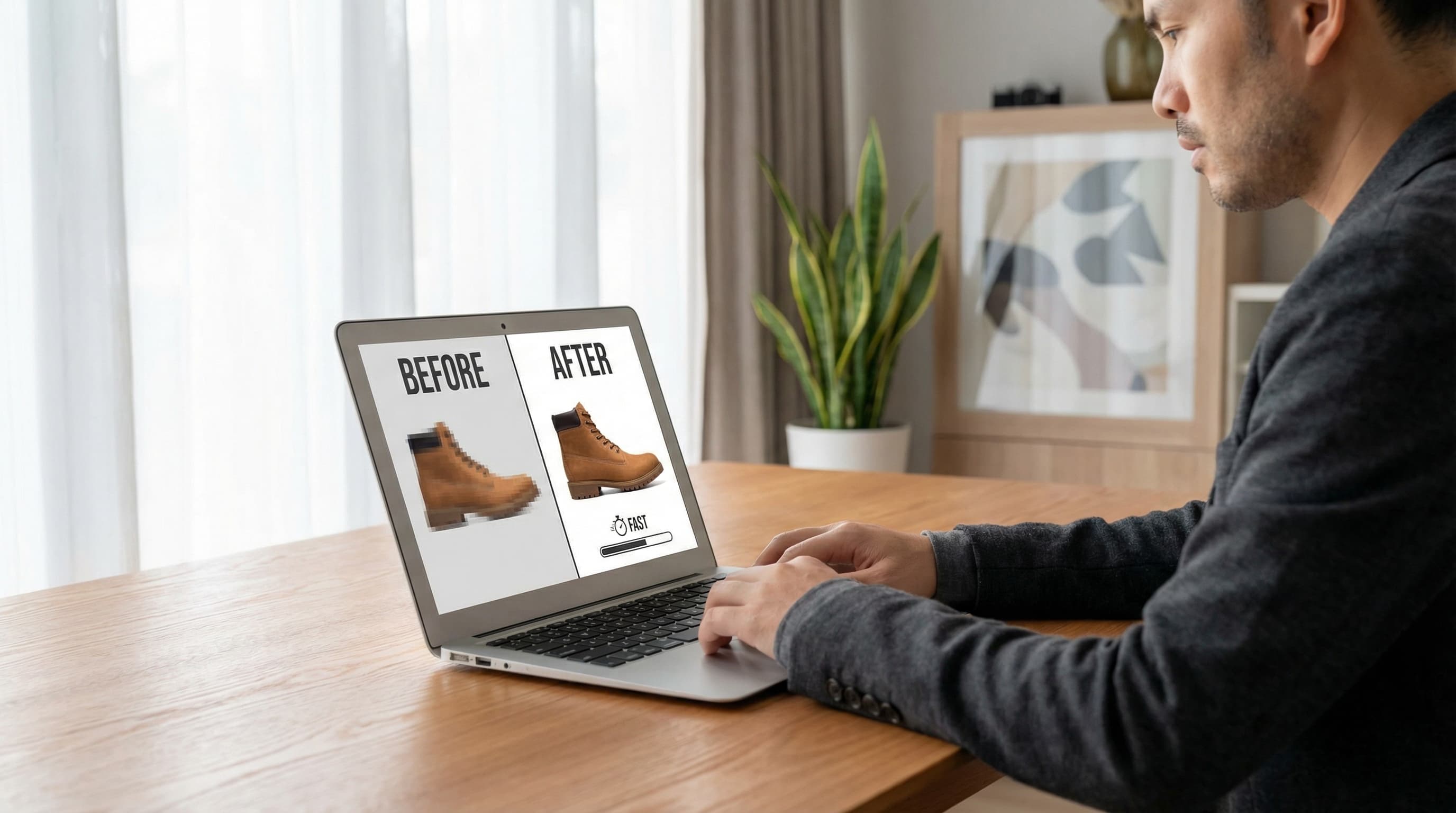
Below is a real-world example of how bulk optimization transforms the quality of a product listing and the technical performance of the store.
| Before | After |
|---|---|
Product: Pro Running Sneakers. | Product: Pro Running Sneakers. |
Image Status: The supplier sent an original photo of 5400x3600 pixels (horizontal format). | Image Status: Automatic resizing to 1200x1200px (1:1), product centering via object detection, and conversion to WebP format. |
File Weight: 8.4 MB (PNG format). | File Weight: 115 KB. |
Shopify Issue: On the mobile version, the image looks cut off at the sides. The page takes 4.2 seconds to load just the main image. The background is an off-white different from the rest of the web. | Shopify Issue: The image fits perfectly into the store grid. Page load speed has improved drastically (LCP reduced by 70%). The background has been standardized to pure white, creating a clean visual transition between products. |
Although ButterflAI is a powerful tool for asset management in eCommerce, it is important to understand its boundaries to obtain the best results:
Automating image sizing is vital in various growth scenarios for a Shopify store:
Always choose a consistent aspect ratio (e.g., 1:1 or 4:5) for your entire catalog.
Use the WebP format to reduce weight without losing visual quality.
Ensure the product occupies between 75% and 85% of the total image area.
Maintain a uniform background (preferably pure white hex #FFFFFF) to improve clarity.
Do not forget to include keywords in the Alt text of the resized images to improve SEO.
Verify that the image filename includes the product name and the primary keyword.
Check the visualization of images across different breakpoints (mobile, tablet, desktop).
Avoid including watermarks that may distract the user or be penalized by Google Shopping.
Ensure the resolution is sufficient for Shopify's zoom to work correctly (minimum 800px-1000px).
Sync your changes in small batches if you are testing design layouts for the first time.
Quick answers to common questions.
Related guides
Keep exploring the best ways to optimize Shopify catalogs with guides that match this topic.
Learn how to bulk edit product images in Shopify with AI. Automate resizing, optimization, and catalog consistency efficiently.
Learn how to compress product images in Shopify to boost page speed and SEO. Discover manual methods and automated AI solutions for bulk optimization.

Learn how to optimize product images in Shopify automatically with AI. Improve your Core Web Vitals, load speed, and image SEO without manual processes.