
Ecommerce SEO
How to Scale FAQ Schema Markup on Product Pages
Discover a governance-first workflow to create high-intent product FAQs from real customer data, deploy safely, and measure SERP CTR impact.
Feb 20, 2026
Read More
A practical guide to auditing your sitemap, removing junk URLs, optimizing crawl budget, and improving the technical SEO of your Shopify catalog.

The Shopify sitemap is a useful diagnostic tool beyond its routine submission to search engines. In large catalogs, this file lets you see at a glance which pages are exposed to crawlers and spot junk URLs, incorrectly indexed pagination, duplicates caused by collections or filters, and paths that return 404 or soft 404 errors. Using it as a starting point speeds up decisions about what to index and what to block using noindex, canonical tags, or redirects.
Reviewing the sitemap reveals the real structure your store communicates to search engines. In Shopify, it’s usually available at the domain root as sitemap.xml (which acts as a sitemap_index.xml) and references specific sitemaps by content type. This makes it easier to prioritize pages with higher conversion potential and to find technical patterns that waste crawl budget inefficiently. To verify its location and format, you can consult public guides such as Seomator’s: Seomator.
Before auditing, it’s essential to distinguish three elements that work together:
The audit starts from the sitemap to identify URL blocks to clean up and to prioritize actions by business impact. In the next sections, we’ll break down concrete steps to detect junk URLs, apply noindex in Liquid templates, implement correct canonicals, and configure redirects in Shopify.
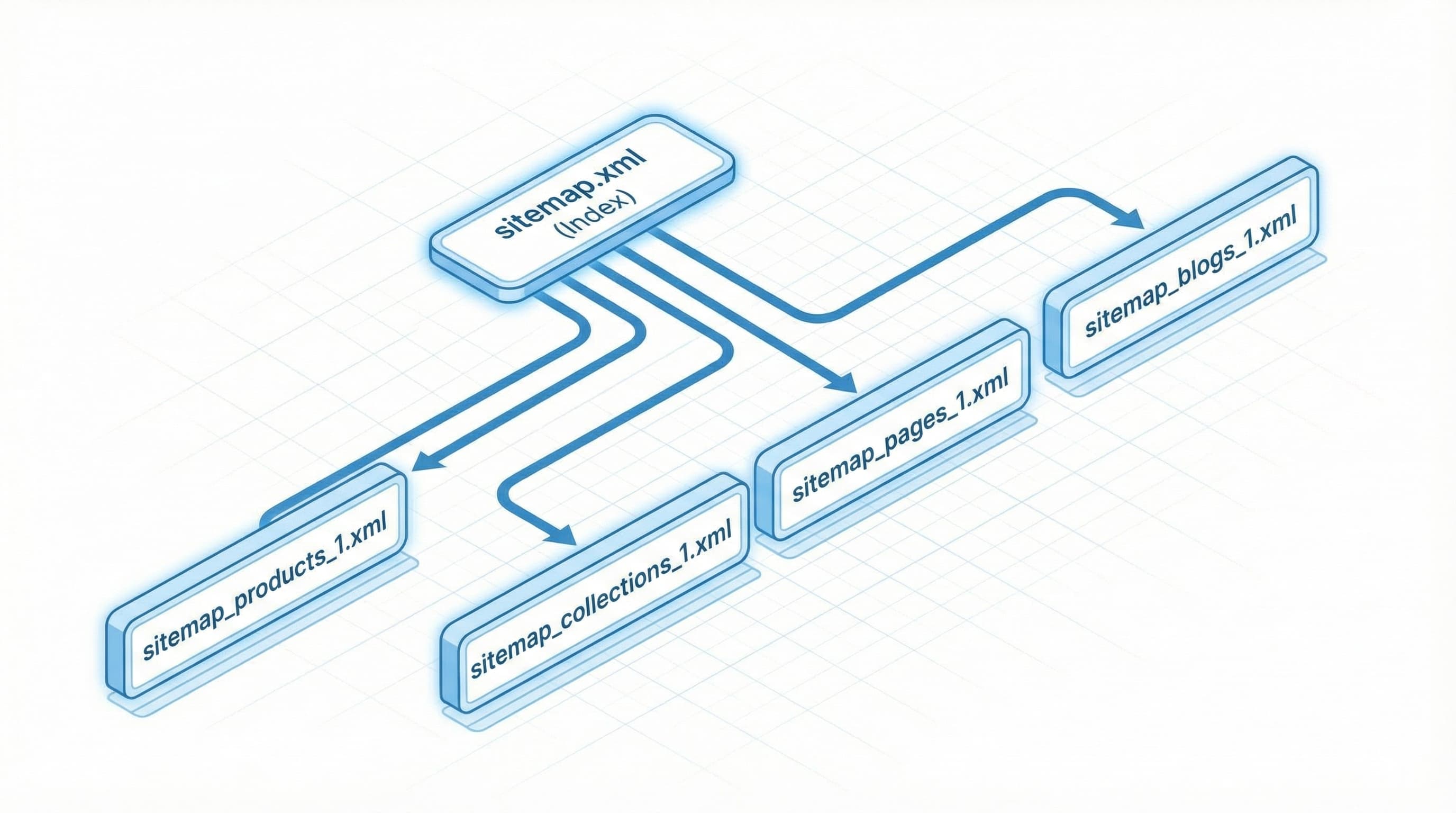
Shopify’s sitemap is the primary reference search engines use to discover the pages in your catalog. Understanding its structure and limitations is key before you begin, because on this platform the sitemap is generated automatically and cannot be edited manually (at least, not the XML file itself).
The sitemap.xml file acts as an index that groups “child sitemaps” by resource type to facilitate crawling.
Download the sitemap index and open the child sitemaps (products, collections, pages, blogs) to inspect repeated patterns and URL volume. The standard sitemap specification allows up to 50,000 URLs per file and 10 MB uncompressed; for more technical details you can consult Google’s developer guide: Developer Google guide.
Structure example:
A typical sitemap index contains references to sitemap_products_1.xml, sitemap_collections_1.xml, and sitemap_pages_1.xml. If products_1 exceeds the limit, Shopify automatically generates sitemap_products_2.xml.
Typical mistake: Assuming all child sitemaps have the same quality. Often the product sitemap is clean, while the collections sitemap can be polluted with hundreds of variations generated by third-party apps.
There’s confusion about which parts of the sitemap a merchant or SEO can modify directly.
In Shopify, the file updates automatically based on the public catalog. You can’t edit the XML directly. However, you indirectly control its contents through:
noindex implementation via template edits (theme.liquid).Practical example:
Setting a collection template with a noindex tag will prevent its URLs from being indexed, even if they still exist in the store. Eventually, Google will stop showing them, although Shopify may keep them in the sitemap for a while until they’re unpublished.
Spotting “noise” in the file helps you prioritize corrective actions. Common signals include:
Cross-check the sitemaps with Google Search Console coverage data and crawl logs to measure the real error rate. Prioritize cleaning the child sitemaps that generate the most errors and contain URLs with no organic traffic.
An initial technical review speeds up the audit. Generate two exportable lists: the sitemap versus Shopify’s real product export, and compute the difference. Inspect recent changes to templates and visibility rules.
Additional sources: Shopify’s sitemap documentation and Google Search Central guidelines are must-have references:
This step-by-step methodology shows how to use the sitemap as an operational tool to detect inefficiencies, locate orphan URLs, and prioritize indexation.
TL;DR: Cross-check the Shopify-generated sitemap with the Search Console coverage report and a full crawl. Identify sitemap entries returning 404s or redirects, filtered views without rel="canonical", and pages without internal links.
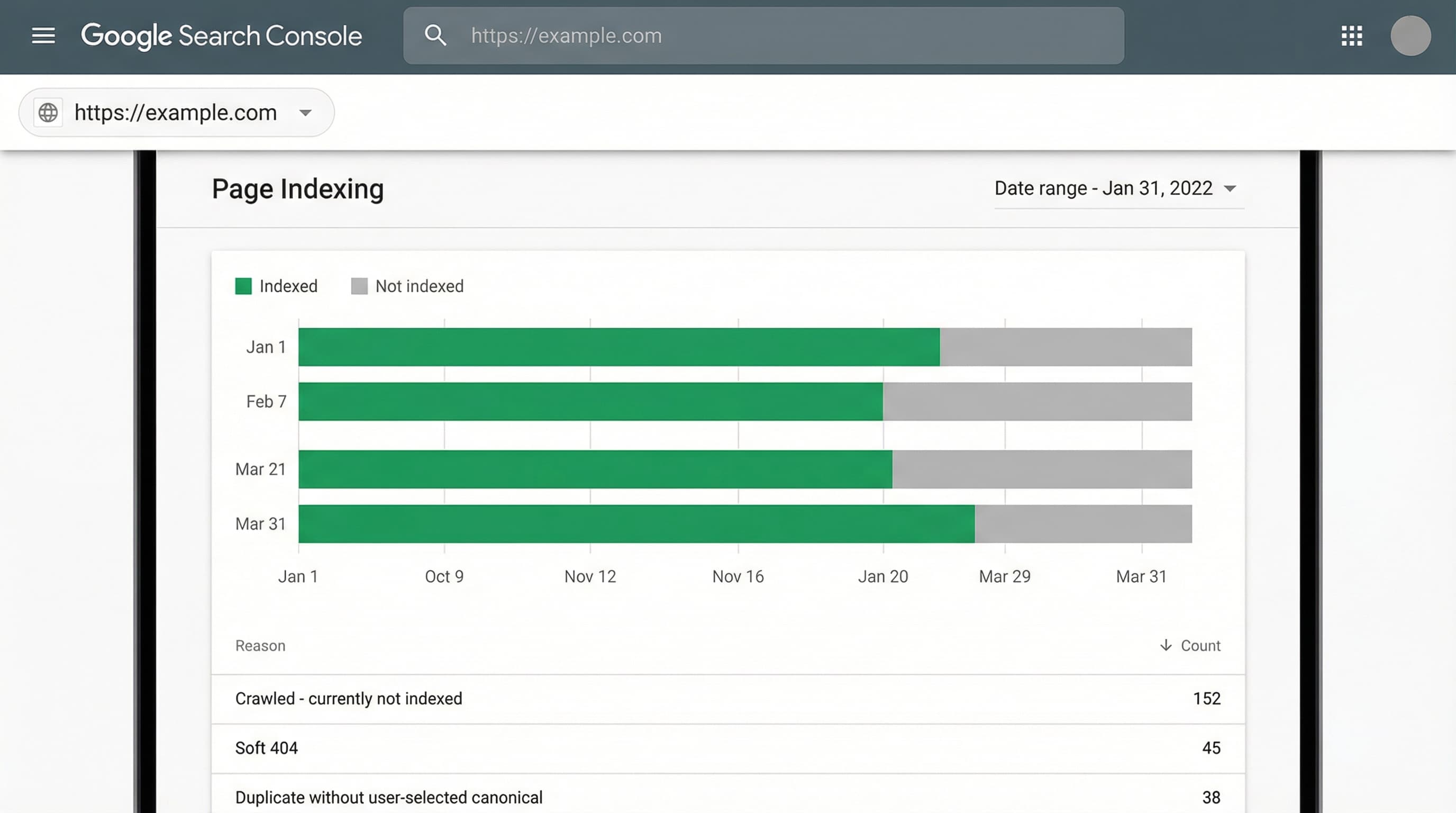
404 and soft 404 pages consume crawl budget and send negative quality signals.
How to approach it: Cross-check the Search Console coverage report with your own crawl using a crawler (like Screaming Frog or similar). Filter by 404 status codes and by pages with minimal content (“Product not found” but returning a 200 code) that Google classifies as soft 404.
Example:
A product appears in sitemap_products_1.xml but returns a 404 error when visited.
Parameters and filters generate multiple URLs with identical or very similar content, diluting page authority.
How to approach it:
Crawl collection URLs with parameters (?sort_by=, ?filter.v=) and check the rel="canonical" tag. This tag should indicate the preferred URL to consolidate ranking signals. In Shopify, make sure your theme returns the correct canonical, or apply noindex to filtered views that don’t add SEO value.
Example:
A collection with a color parameter (/collections/zapatos?color=rojo) generates multiple variants.
/collections/zapatos if there isn’t a substantial content change, or be managed as unique pages if there’s specific search demand for “zapatos rojos”.URLs without internal links are hard to crawl and rarely receive organic traffic, even if they’re in the sitemap.
How to approach it: Generate your internal link map with your crawler and cross-check it against the sitemap. Prioritize fixes by commercial impact: review high-margin pages that are orphaned and add links from the menu, featured collections, or blog posts.
Typical mistake: Trying to fix all orphan URLs equally instead of prioritizing those with sales potential.
Fixes must be implemented in the platform to close the loop.
How to approach it:
theme.liquid or SEO apps for irrelevant filtered views.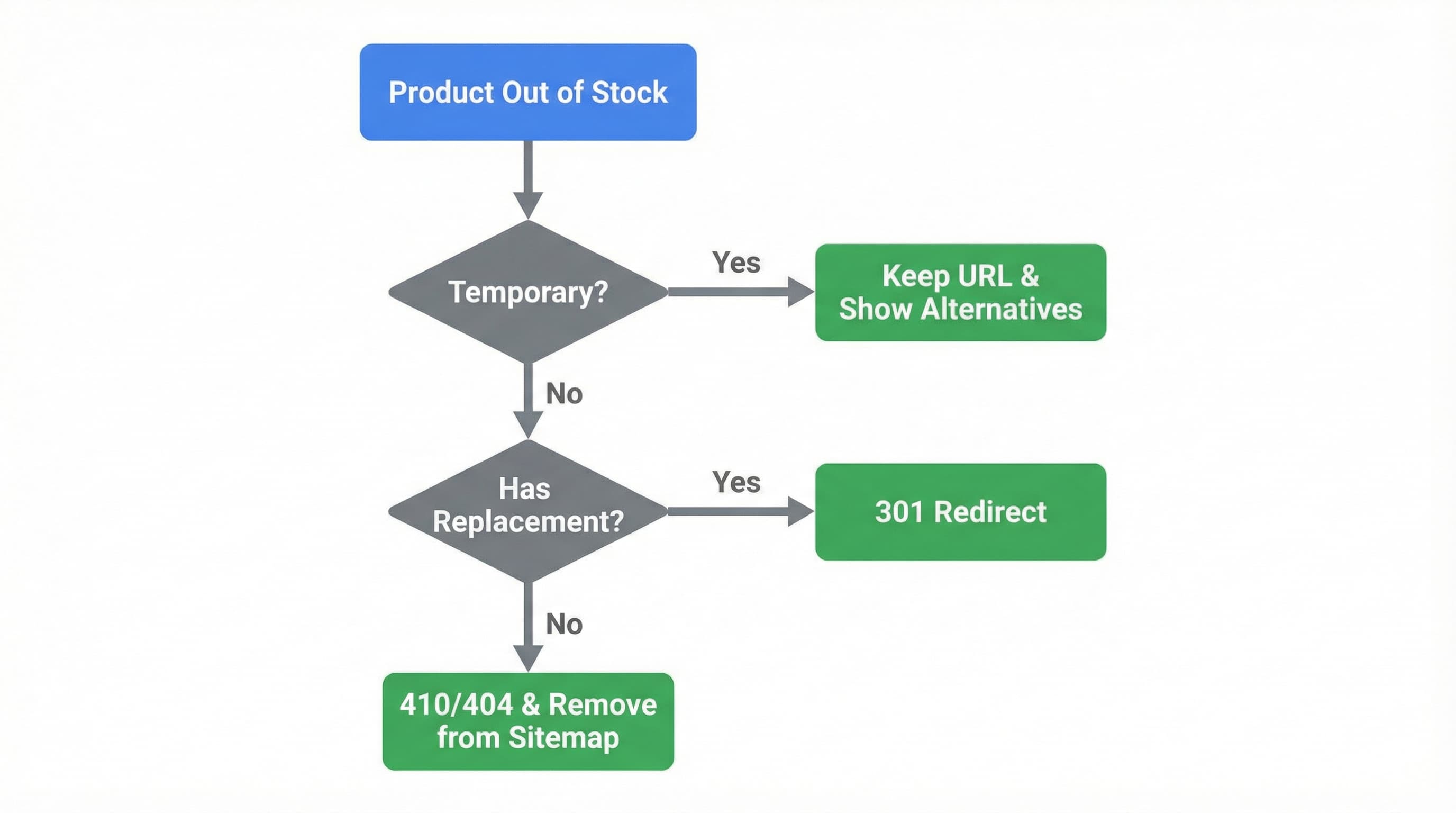
The sitemap is your battle map. Focus this section on actions you can apply from the Shopify admin to reduce noise, prioritize indexation, and optimize crawl budget.
Removing low-quality pages from the index prevents them from consuming resources and weakening domain authority.
How to approach it:
List problematic URLs identified in Search Console. For large URL groups, add conditional logic in your Liquid template (theme.liquid or collection.liquid).
Example logic code (pseudocode):
{% if current_tags contains 'filtro-irrelevante' %}
  <meta name="robots" content="noindex">
{% endif %}
Applying noindex to an entire collection without first validating whether any of its variants (tags) is ranking for long-tail keywords.
Out-of-stock pages can remain indexed without driving conversions, increasing sitemap noise and frustrating users.
Define a clear policy:
Create 301 redirects from the admin (Online Store > Navigation > URL Redirects) for discontinued products immediately after unpublishing them.
Duplicates fragment ranking signals. It’s vital that Shopify always points to the “clean” version of the URL.
Check the rel="canonical" tag in the source code (“View page source” in the browser). Adjust templates so they point to the canonical URL without tracking parameters (like fbclid or utm) or collection variants (/collections/nombre/products/producto should canonicalize to /products/producto).
301 redirects consolidate authority from old links and reduce sitemap errors.
When you remove or move content, create the 301 redirect immediately. Validate the sitemap afterward and force it to be reprocessed in Search Console if the changes are massive.
In large catalogs, the sitemap is a starting point for detecting where crawl budget is being wasted. This section explains how to edit robots.txt in Shopify to apply safe blocking rules.
Identifying URL patterns that consume crawls without adding value helps you avoid losing indexation credit on useful pages.
Download your sitemap and compare it to the public robots.txt (yoursite.com/robots.txt). Use Search Console to see which URLs receive the most crawls. If you detect repeated parameters or routes (like internal searches q=), group them and block them.
Consult Google’s guide on robots and crawl budget to validate your criteria before blocking anything: guía de Google sobre robots y crawl budget.
Facet and infinite filter pages are the biggest crawl budget consumers in eCommerce.
In Shopify’s robots.txt (editable via robots.txt.liquid in the theme editor), use Disallow patterns that match the problematic routes.
Prevent crawling of collection sorting:
Disallow: /collections/*?sort_by=*
Test each rule with the URL Inspection tool or the robots.txt tester in Search Console before pushing to production. A poorly written rule can deindex your entire site.
Shopify generates a fairly solid default robots.txt, but it’s customizable.
Review Shopify’s official help on robots.txt: ayuda oficial de Shopify sobre robots.txt. Implement blocks only for clear junk-URL patterns. For individual pages you want to deindex but still allow Google to crawl (to pass authority), use noindex in the template instead of blocking them in robots.txt.
Blocking .js or .css resources in robots.txt. Google needs to render the full page to understand it; if you block styles, you can hurt your rankings.
A thorough sitemap audit often reveals a deeper issue: thousands of technically indexable URLs but with “thin” content (empty, duplicated, or poor descriptions) that Google chooses to ignore or classify as soft 404.
ButterflAI solves this bottleneck by generating and optimizing product content at scale. ButterflAI detects empty or low-quality fields in your catalog and uses contextual AI to generate unique, SEO-optimized titles, descriptions, and metafields. This turns “zombie” URLs into content-rich pages that justify their presence in the sitemap and capture qualified traffic, enabling eCommerce teams to scale their catalog without sacrificing technical quality or crawl budget.
Go deeper with guides and tools connected to this topic.
Quick answers to common questions.
Discover a governance-first workflow to create high-intent product FAQs from real customer data, deploy safely, and measure SERP CTR impact.
Feb 20, 2026

Technical guide to choosing the best SEO app for Shopify, evaluating impact on Core Web Vitals, indexation, and catalog scalability without technical errors.
Feb 7, 2026
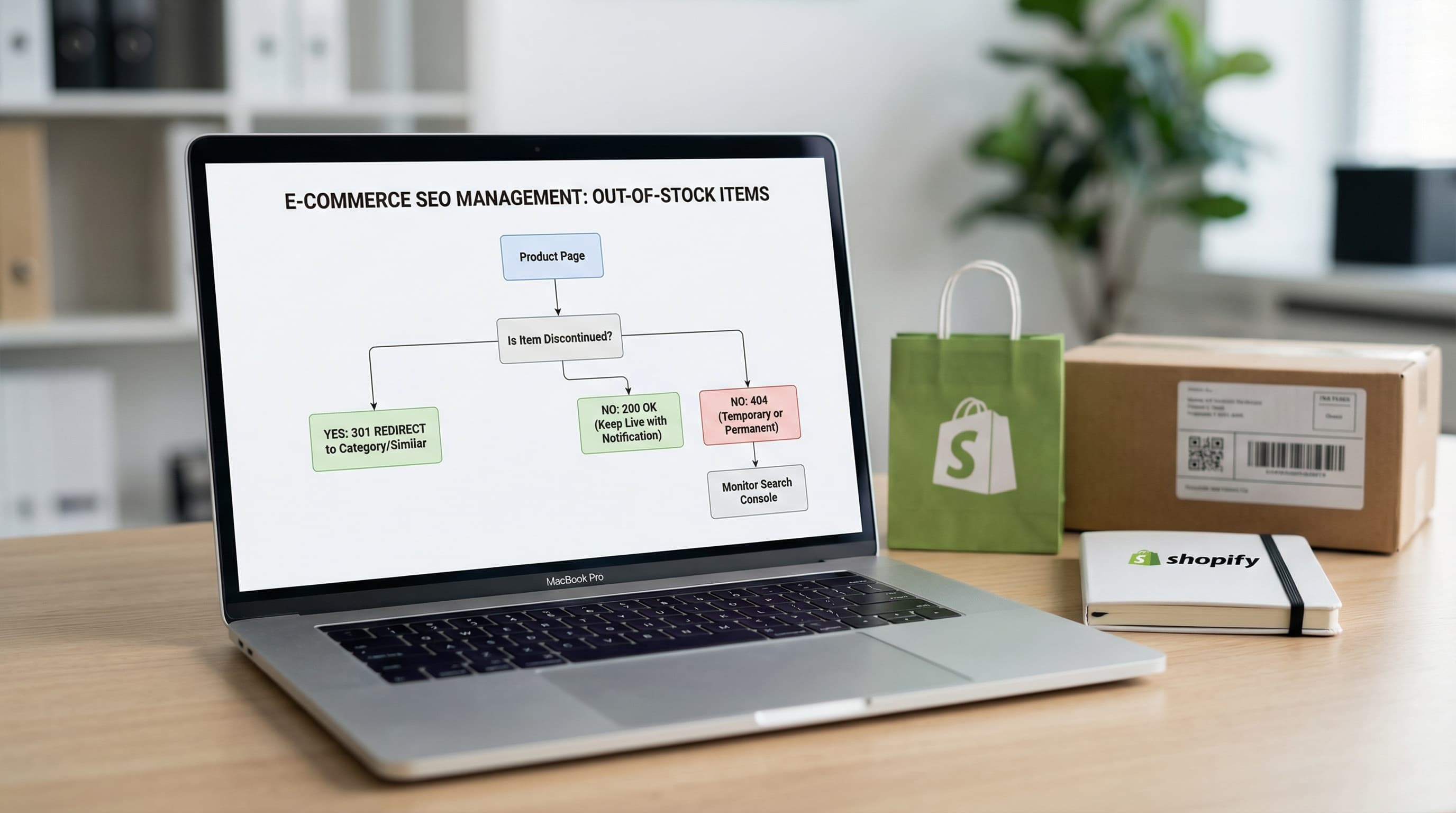
Learn how to manage discontinued products to avoid Soft 404 errors and maintain your authority with strategic 301 redirects.
Feb 2, 2026
